Conditions
You can use condition(s) at the campaign level or as part of acustom filter that can be applied to multiple campaigns.
Any visitor that does not match your condition is filtered out and sent to the safe page.
Allow/Contains - Allow
Block/Does not contain - Block
Country
Select the country/countries you want to allow/block. You can add multiple countries.
If you are running organic traffic then you can delete this condition, it will accept all countries.
You can also block visitors with Empty Country using the {EMPTY} macro. If it doesn't appear in your list, clear the local storage of the app https://mage2.pro/t/topic/1659

For example, if you set the condition to Allow Netherlands, then all the traffic that is not from the Netherlands will be sent to the safe page.
Region
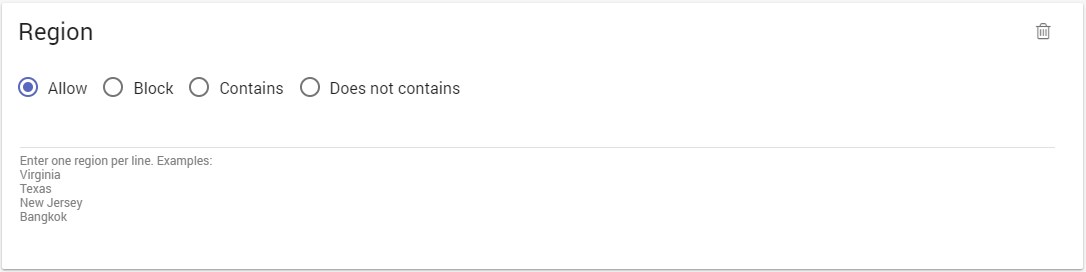
Enter the region/regions you want to allow/block. You can block visitors with Empty Region using {EMPTY} macro.
You can add multiple lines. Enter one value per line.
City
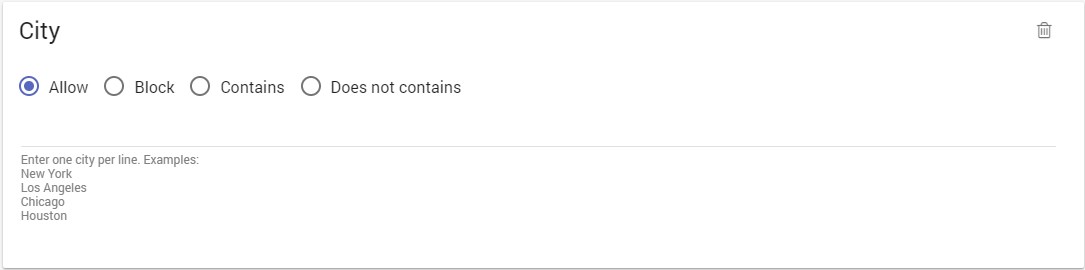
Enter the city/cities you want to allow/block. You can block visitors with Empty City using {EMPTY} macro.
You can add multiple lines. Enter one value per line.
Language
Select the language/languages you want to allow/block.
You can add multiple languages.

Device type
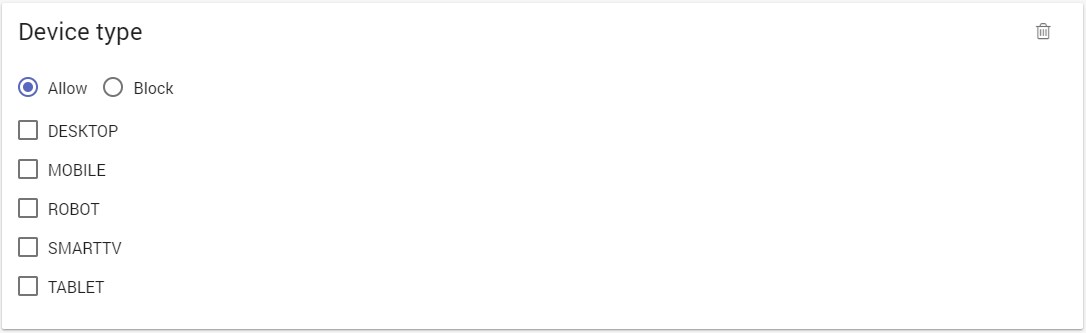
Select the devices you want to allow/block.
Connection type
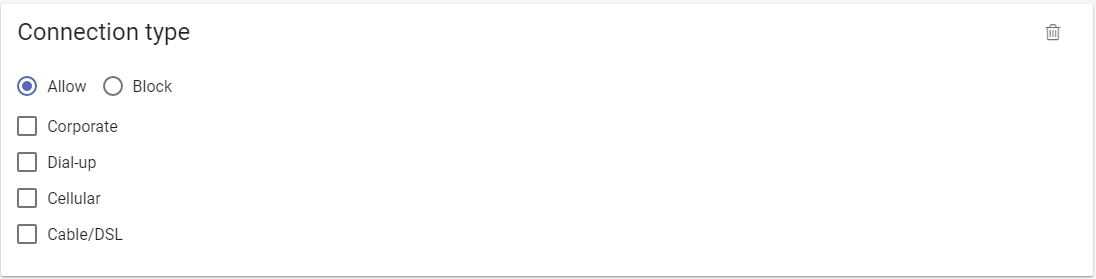
Select the connection types you want to allow/block.
ISP Org Carrier
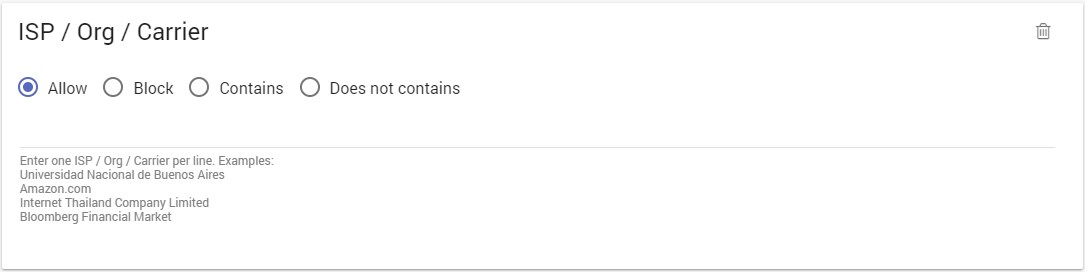
Enter the ISP / Org / Carrier you want to allow/block.
You can add multiple lines. Enter one value per line.
Example: Verizon, Comcast
IP
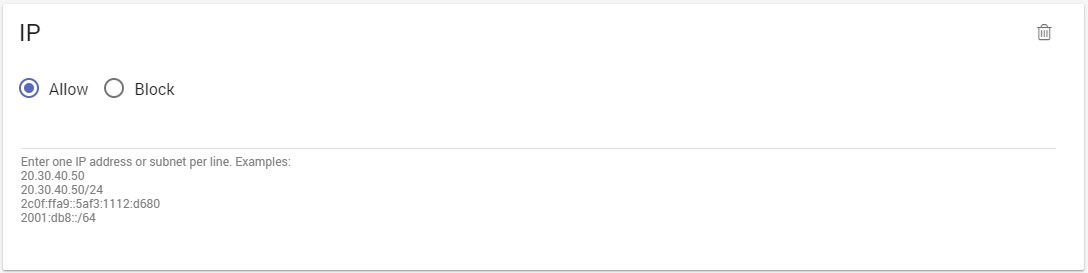
Enter the IPs or IP ranges you want to allow/block.
You can add multiple lines. Enter one value per line.
Required format: CIDR notation
Example: IPv4
- 20.30.40.50
- 192.168.2.0/24
IPv6
- 2c0f:ffa9::5af3:1112:d680
- 2001:db8::/64
You can also convert a range to CIDR using a calculator like this.
User-agent
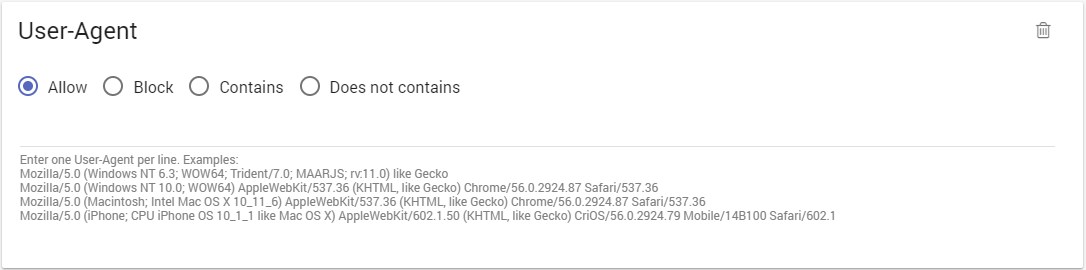
Enter the User-agent match(es) you want to allow/block.
You can add multiple lines. Enter one value per line.
Example: Mozilla, BingBot
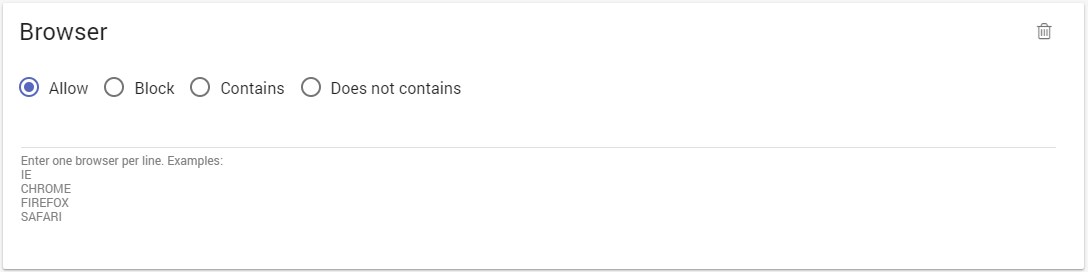
Browser
Enter the browser you want to allow/block.
You can add multiple lines. Enter one value per line.
Example: Chrome, Safari
Brand
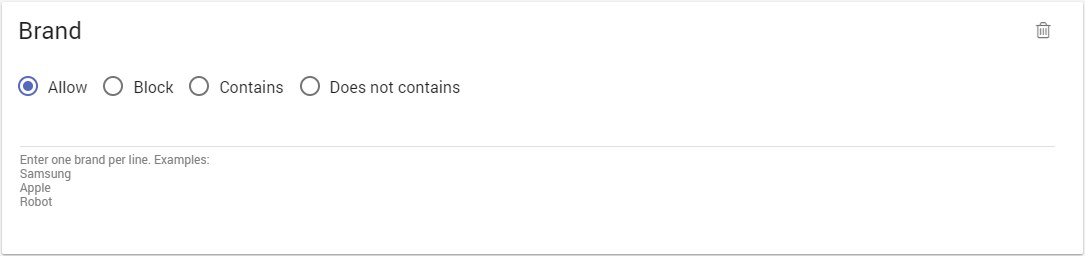
Enter the brand you want to allow/block.
You can add multiple lines. Enter one value per line.
Example: Samsung, Apple
Referrer
The HTTP referrer is an HTTP header field that identifies the address of the webpage (i.e. the URI or IRI) that linked to the resource being requested. By checking the referrer, the new webpage can see where the request originated. Please read: https://en.wikipedia.org/wiki/HTTP_referer
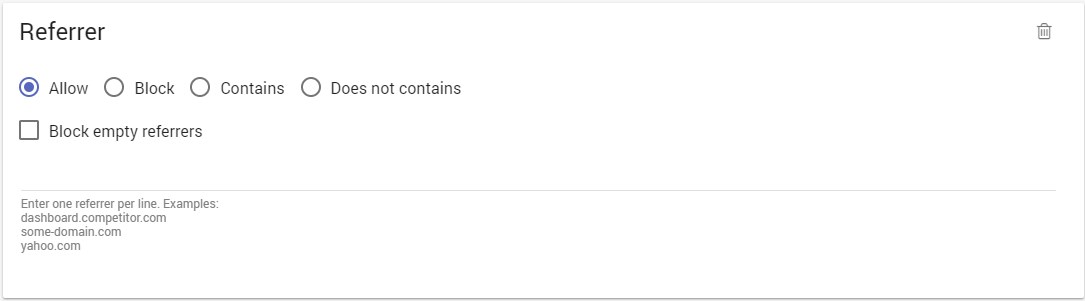
Enter the referrer you want to allow/block. You can add multiple lines. Enter one value per line.
You can block visitors with empty referrer.
Example:
- dev.facebook.com
- website.com/topic1/
URL parameter
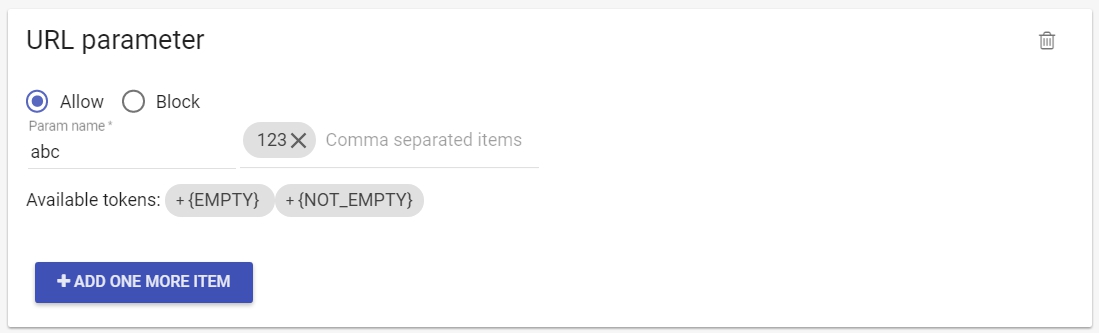
Enter the query string parameters and values you want to allow/block. You can add multiple lines with "Add one more item".
Example1: allow parameter name abc - value 123
This will allow only visitors that came from your cloakedURL.com?abc=123
Example2: block parameter name abc - value empty
This will block all visitors that came from your cloakedURL.com?abc=
A practical use is to allow only visitors from AdWords that have the gclid parameter: https://docs.fraudfilter.io/kb/adwords-gclid/
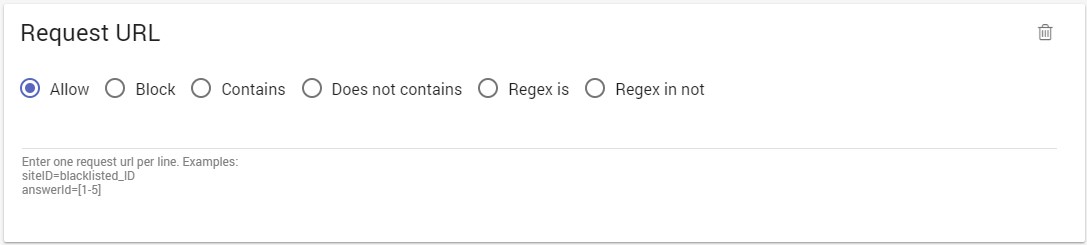
Request URL
Request URL is the URL where the request originated - cloaked URL.
Time and day
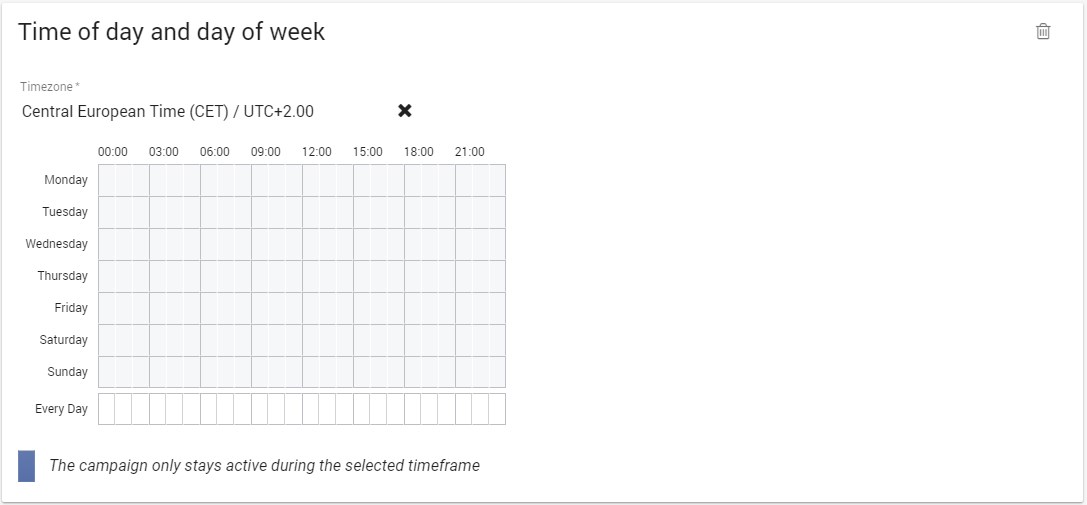
You can keep the campaign active during a specific time frame.
It might be useful to you if you already use Day/Week parting in the ad network or you run your campaign only during a specific time frame.
Select the time range and days you want the campaign to be allowed.
Timezone
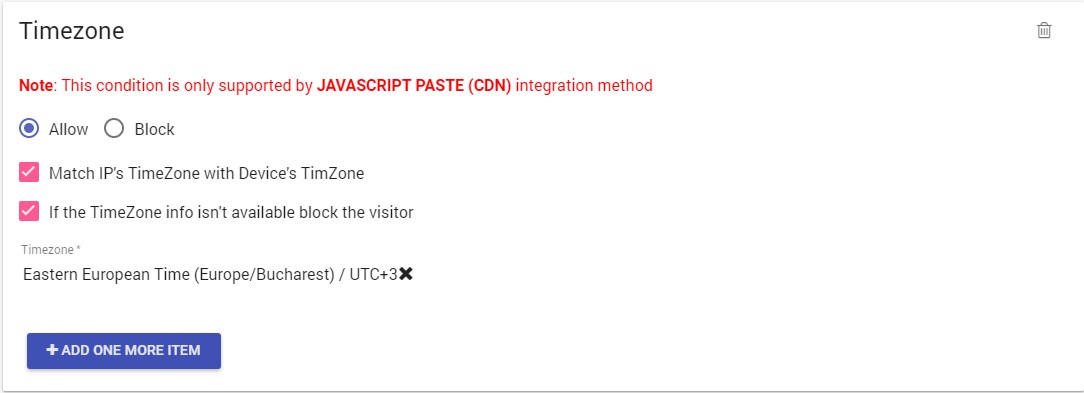
This condition is supported only by JAVASCRIPT PASTE integration method as it's technically not possible to get the visitor's timezone without using JavaScript