Recommended Hosting Setup
Estimated cost ~$5-$20.
Existing Hosting
We do not recommend using traditional hosting services like NameCheap, GoDaddy etc.., as they often stop cURL (without notifying you) when your traffic volume increases. cURL is used for making requests to our API and if cURL stops working - no request will be made to our API, and you'll not see any traffic in your click log.
While you might still be able to use your existing hosting, we do not recommend it! Traditional hosting is good only for simple websites, not for media buying or advertising campaigns.
The setup described below is not crucial for FraudFilter to function well, but it's highly recommended that you use it for maximum performance, compatibility, and security.
Note:FraudFilter requires PHP 5.4 or higher
Domains
You can use any registrar for domain registration, for example, Godaddyor Namecheapor Internet.bs.
Pro Tip
Set default nameservers in your domain registrar to the ones provided by your DNS service (Cloudflare). It will minimize the propagation time and domain setup time.
DNS
We highly recommend using Cloudflare for managing DNS.
Sign up for Cloudflare (free plan, recommended) and keep it ready for the next step! This connects your domain name to your server's IP.
Avoid
Do not use DNS services that come with your hosting (even Digital Ocean's DNS) or domain registrar (Namecheap or GoDaddy), they have subpar performance.
Altenatives: DNSMadeEasy (recommended), Dyn DNS (recommended), Route53, or NSOne.
VPS
- Sign up for Digital Ocean (Cloud VPS provider).
Digital Ocean is much easier and our guide covers only Digital Ocean.
Alternatives: You can also use other cloud VPS providers like Linode, Vultr, etc.
If you want a free server, we recommend Amazon Lightsail
- Recommended Settings: Digital Ocean VPS DISK/CPU: 2GB SSD / 2 CPU, IOPS: 73647, Cost: $20 per month, Location: close to your visitors - if possible, on the same continent
The following link will pre-select the key settings for you: https://cloud.digitalocean.com/droplets/new?size=2gb&distro=ubuntu&distroImage=ubuntu-16-04-x64&options=backups,ipv6
Note: While this is better for most advertisers, you can always choose smaller or larger Droplet as per your requirement.
The smallest droplet $5/month is sufficient to run under 1 million FraudFilter checks a day. If your using it to host your landing page as well it should be sufficient for 0.5 million checks a day.
If you have a small budget, you can use this $5 Droplet: https://cloud.digitalocean.com/droplets/new?size=512mb&distro=ubuntu&&distroImage=ubuntu-16-04-x64&options=backups,ipv6
or $10 Droplet: https://cloud.digitalocean.com/droplets/new?size=1gb&distro=ubuntu&&distroImage=ubuntu-16-04-x64&options=backups,ipv6
In Digital Ocean, a VPS instance is a Droplet.
Important
Enable IPv6 on your DigitalOcean Droplet: https://www.digitalocean.com/community/tutorials/how-to-enable-ipv6-for-digitalocean-droplets
ServerPilot
- Sign up for ServerPilot. It is a secure control panel optimized for hosting PHP websites/apps on cloud servers, think cPanel but simpler and uses fewer resources.
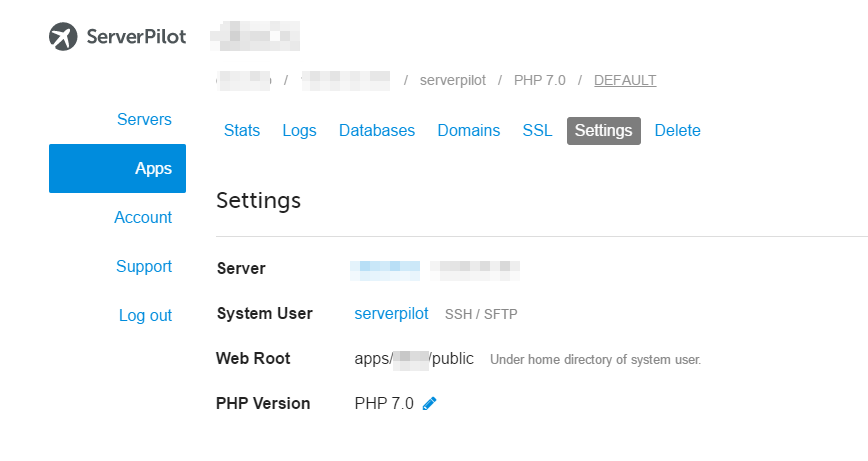
- Connect ServerPilot and Digital Ocean
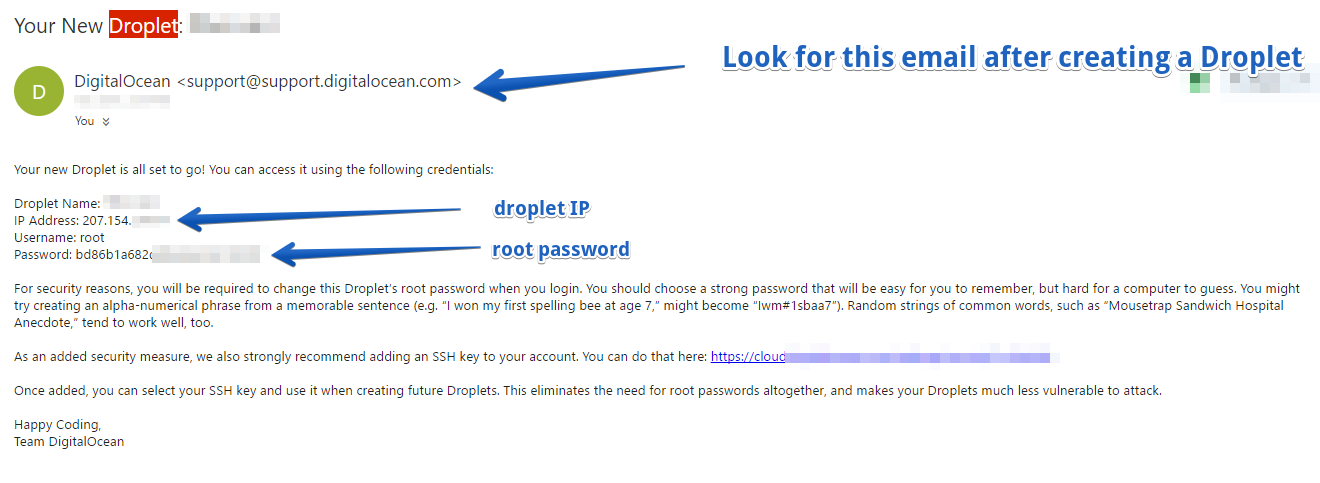
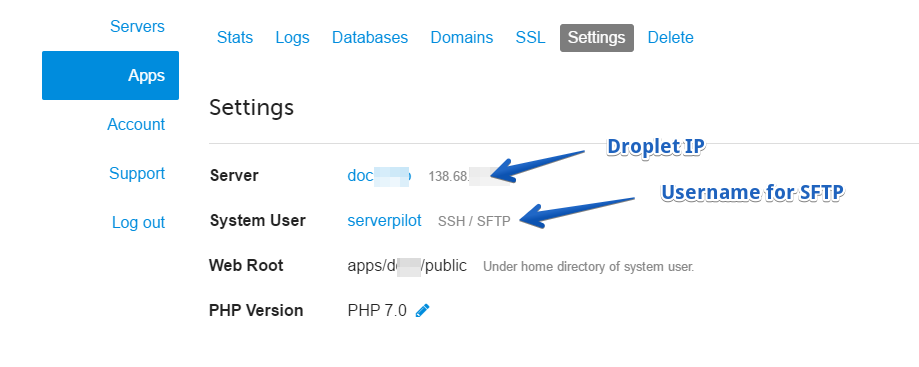
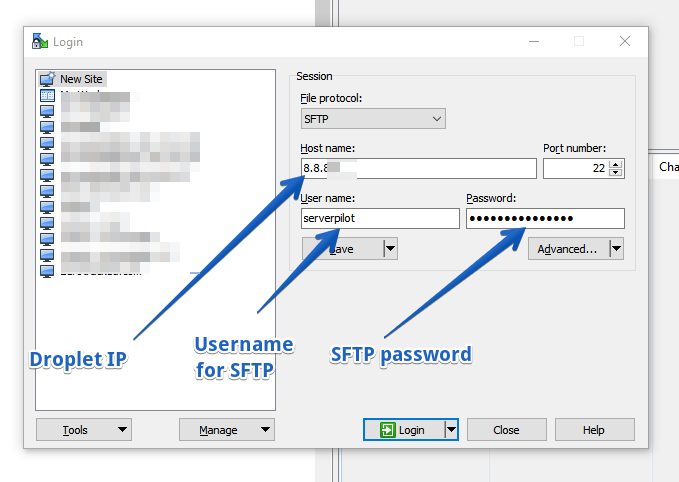
- You should have received Droplet's IP, username, and password in your email.
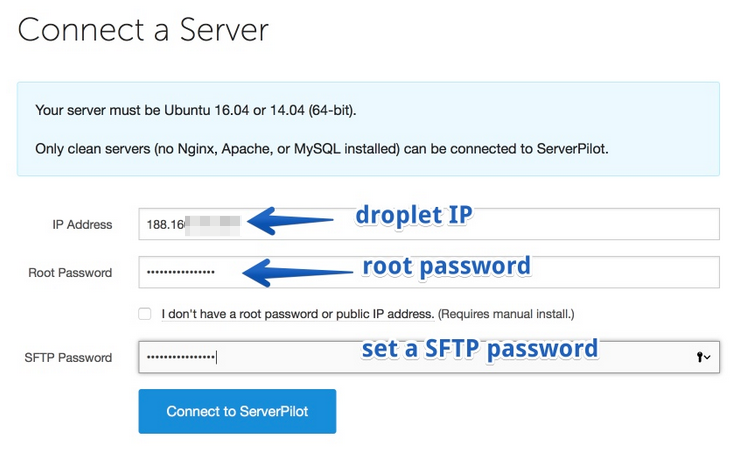
- Go to: https://manage.serverpilot.io/#servers/new , enter all the details. Specify your custom SFTP password (you'll be using it for SFTP, to upload files to your web server ).
a) Add the domain to your Cloudflare account:
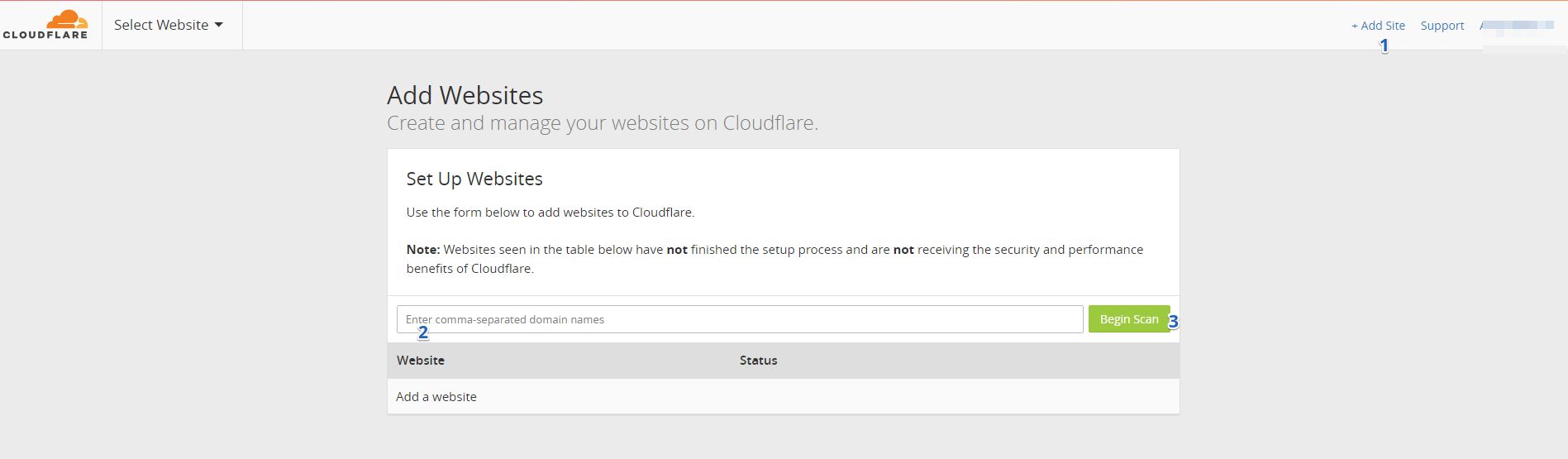
When you update the nameservers for a domain, it may take up to 24-72 hoursfor the change to take effect. This period is called DNS propagation.
You can use Pingdom tool to check if you've correctly set your nameservers, the boxed Nameserver section must display your CloudFlare nameservers:
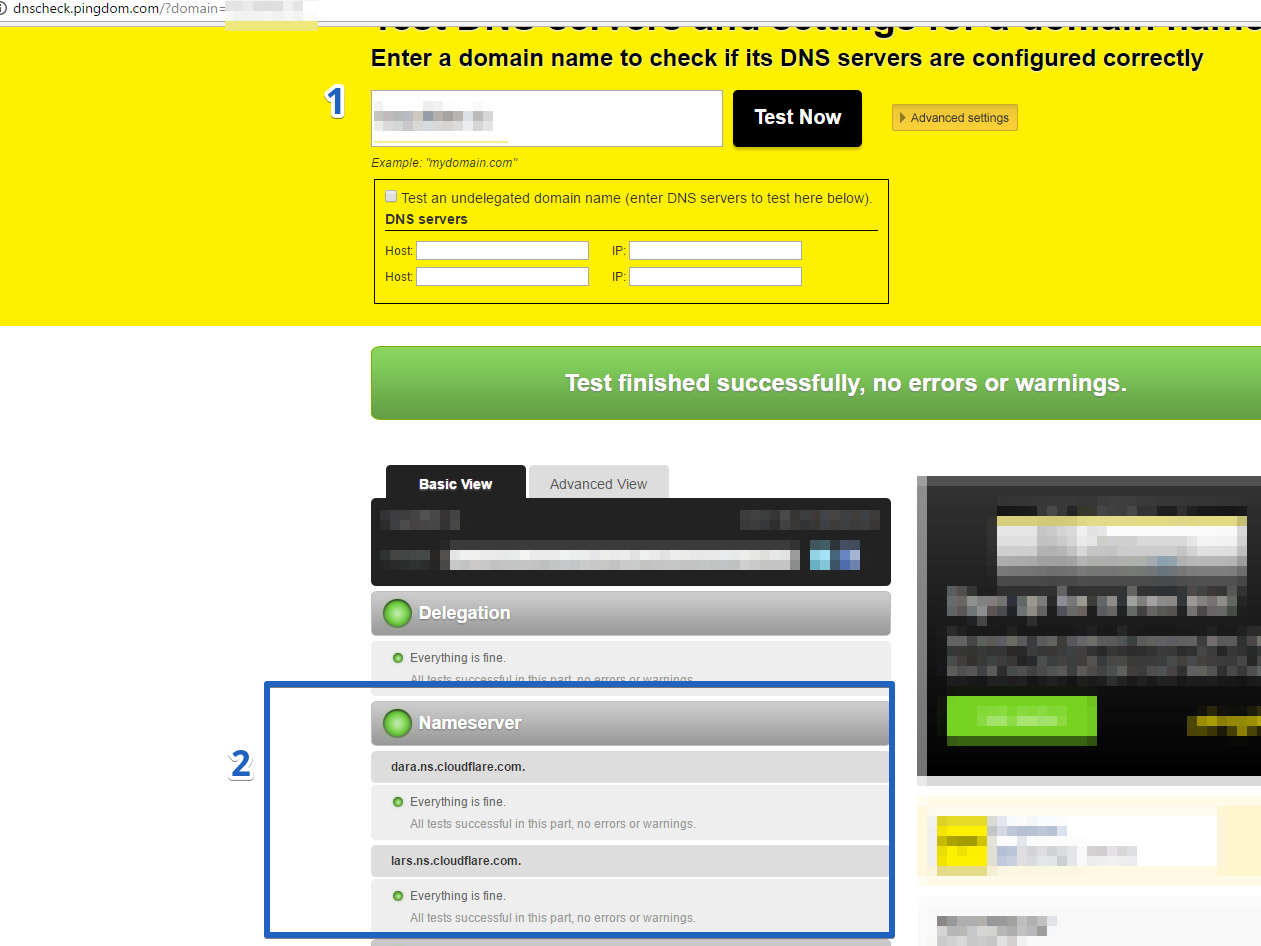
Caution: CloudFlare nameservers differ per account, so please use only the nameservers assigned to your account. Do not use Google to find Cloudflare's nameservers.
Once you've added the domain to your CloudFlare account and set Cloudflare's nameserver in your domain registrar, add a DNS A Record with Droplet IP:
Type: A
Name: @
Value: Droplet IP
TTL: Automatic
Status: Grey Cloud
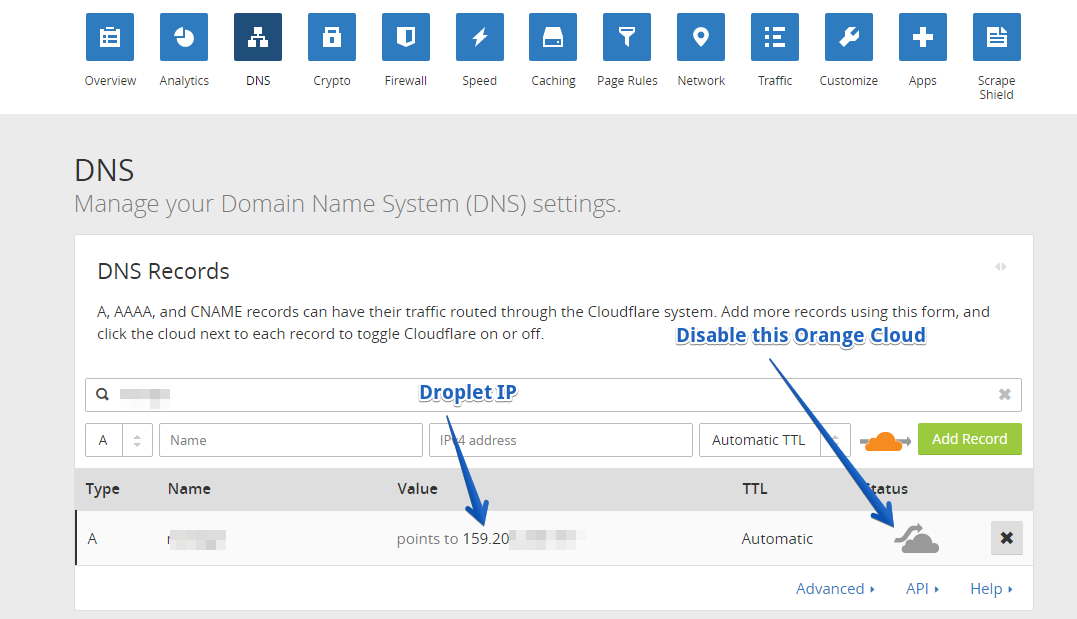
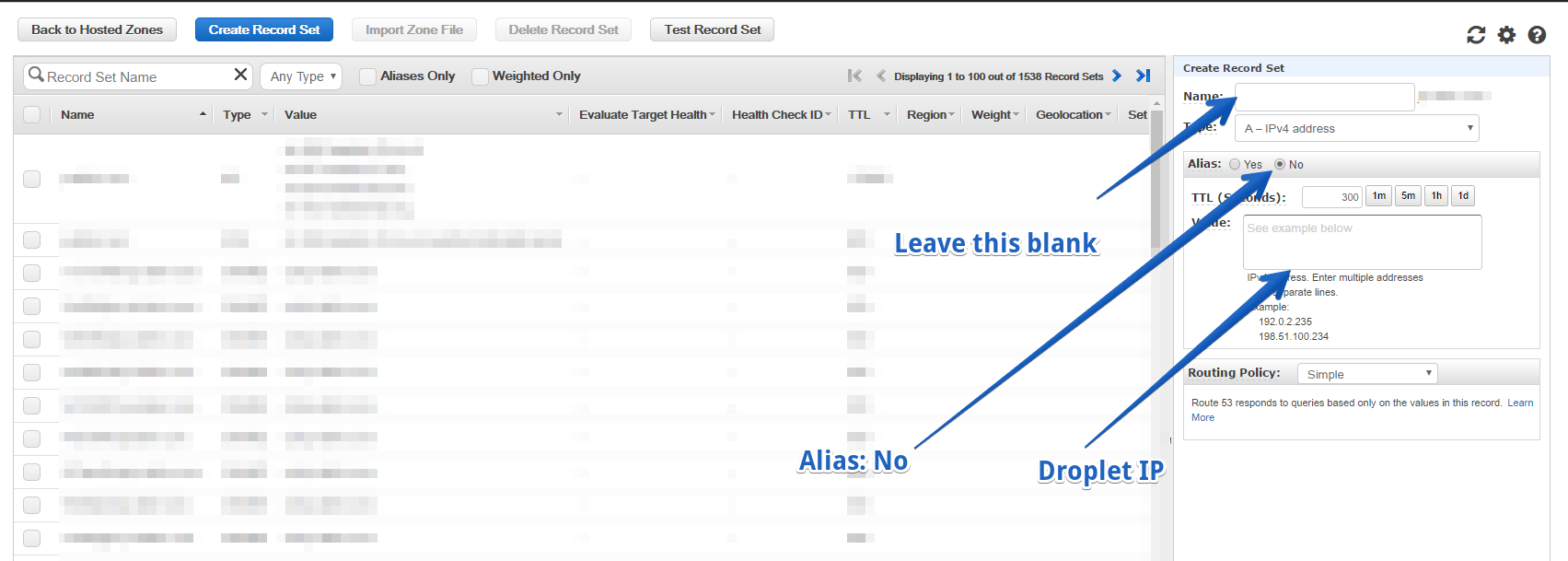
And if you are using Route53 instead of Cloudflare then please set it like this to achieve the same effect:
b ) Check if the DNS records have propagated in all regions using https://www.whatsmydns.net/, it must display your Droplet's IP:
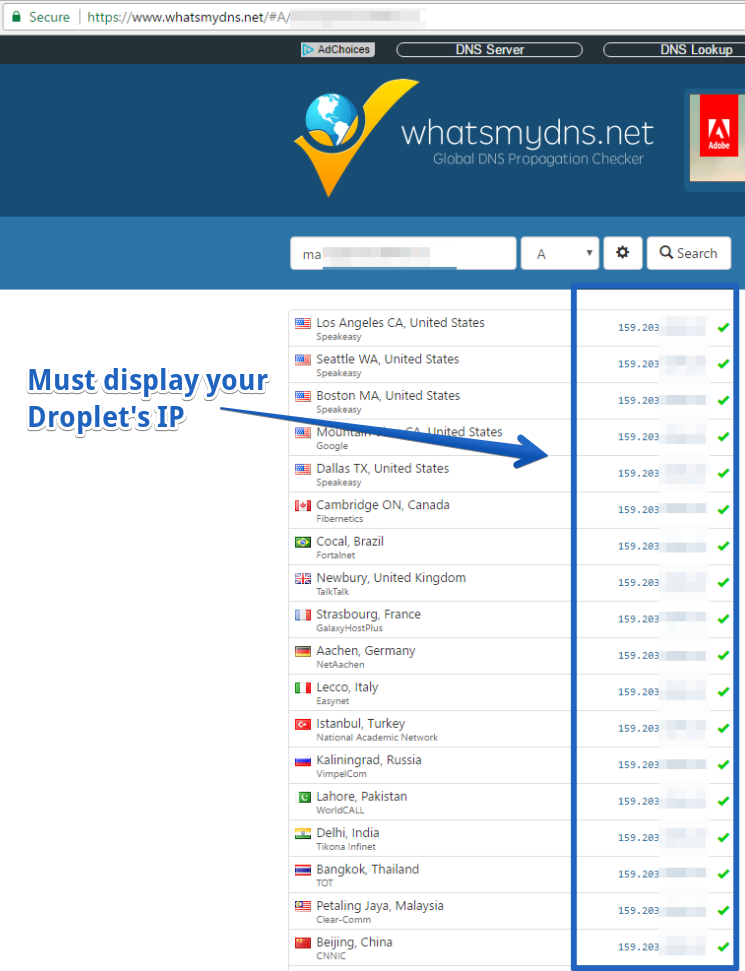
If it does not display your Droplet IP then it means either the DNS records have not propagated or you've made some error in the nameserver or DNS record configuration.
c) Create an app in the ServerPilot:
Apps are basically domains or subdomains in ServerPilot
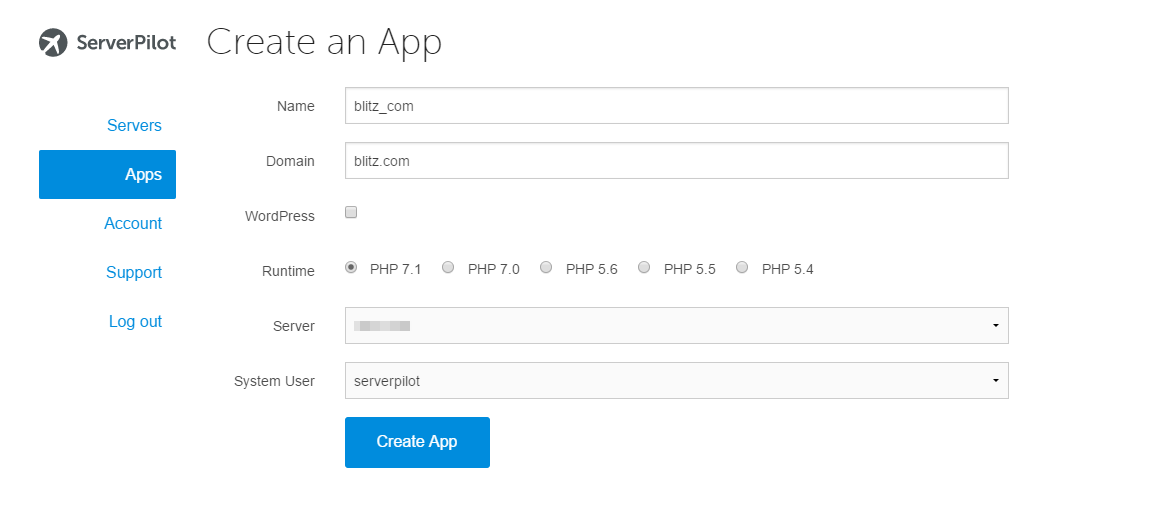
FraudFilter supports PHP 5.4 or higher, so you can choose the latest one!
Pro Tip If your domain name is "domain.com", name your app as "domain_com". Replace (.) dot with an underscore (_). As ServerPilot does not allow the use of dot (.) in the app name, this workaround makes it easier to remember which app links to which domain.
d) If you want to add one or more domains to the same app:
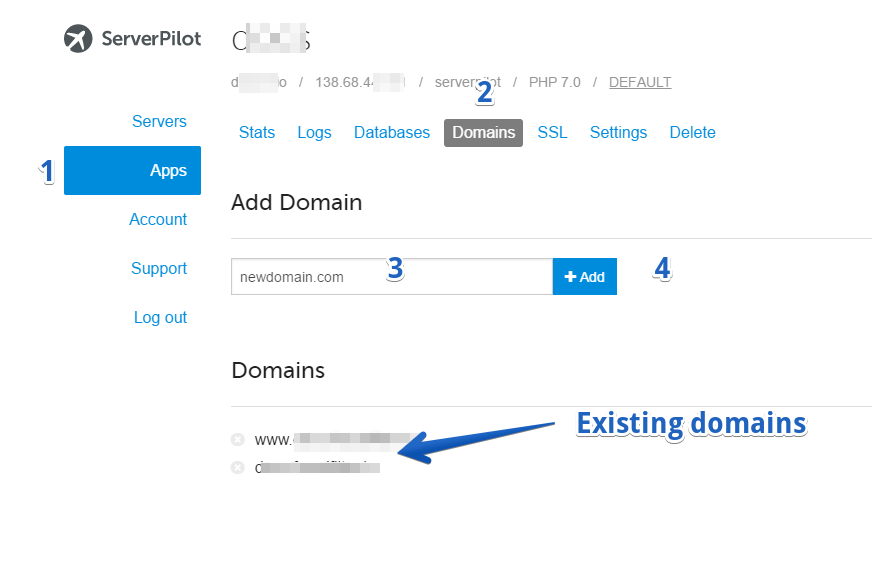
You'll be creating one app for each domain if you plan to upload different files. But if you simply want to change the domain of your app or server the same files from a new domain then you can add your new domain to the existing app.
SFTP
You'll be using SFTP to transfer your files from your computer to your server.
We recommend using WinSCP (Windows) or Transmit (OS X).
In WinSCP, enter the SFTP credentials and simply click "Save" then "Login" button:
Directory or location for file or folder upload in ServerPilot is:
/ srv /users/ serverpilot /apps/ /publicFor example, according to our guide, if your domain name is example.com then your location for uploads is (simply replace the "." with "_" in the domain name):
/ srv /users/ serverpilot /apps/example_com/publicInstalling SSL
You can also add free SSL to your domains in a few clicks, refer: https://serverpilot.io/community/articles/how-to-install-an-ssl-certificate-on-your-site.html
While the SSL itself is free, adding free SSL requires an upgrade to their coach plan:
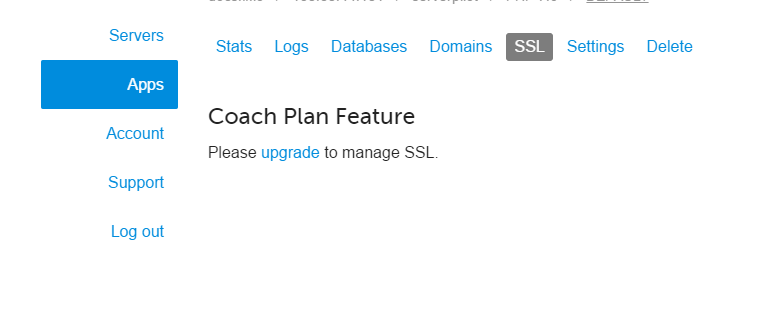
Our customers have successfully used this script to add SSL without upgrading to the paid plan, https://github.com/lesaff/serverpilot-letsencrypt, this requires you to log in to your server using the root account.
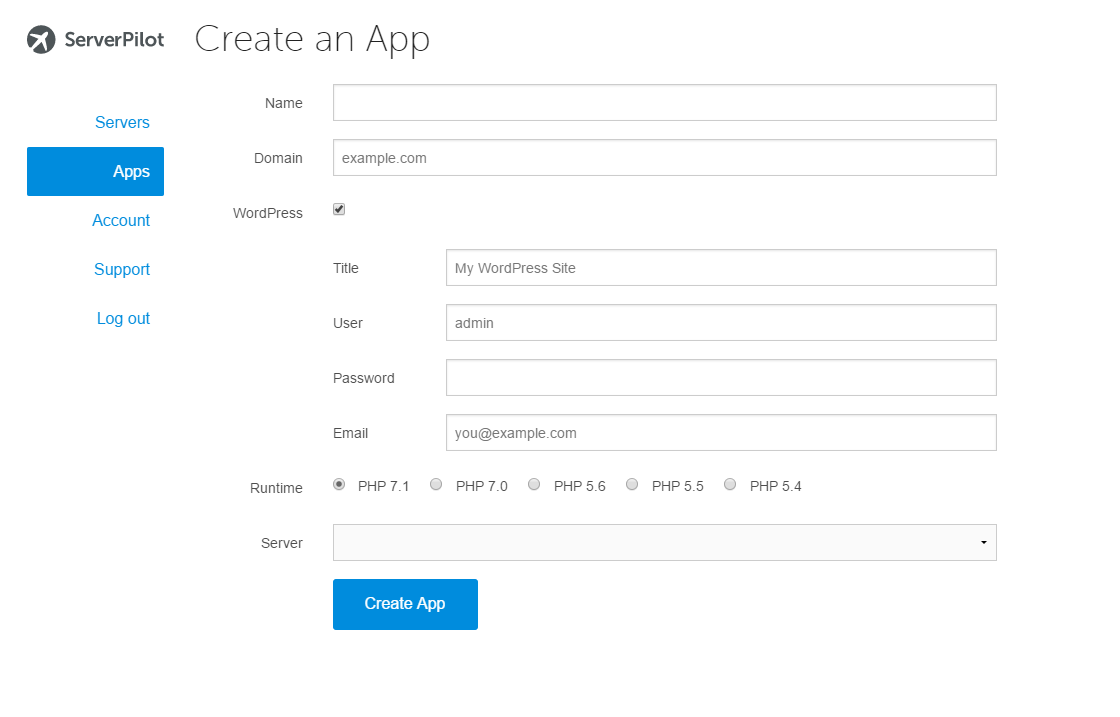
Warning: We do not recommend using WordPresss. But still, if you want to install WordPress, it's fairly easily to do so:
Installing WordPress
Installing WordPress is very simple with ServerPilot:
Learning More
Moving forward, you can learn more about ServerPilot (app, domain, SFTP) here: https://serverpilot.io/community/ , better avoid reading all of their guides since I've linked the relevant ones above, further reading might add to your confusion. But really that's all you need to know to be among the top affiliates in terms of infrastructure.
If you run into some issue with this setup, simply use their search on their website: https://serverpilot.io/community/
Well done! Now, you are all set. You've learned a new skill today, you'll never need expensive, slow shared hosting or managed VPS.